The Control feature in OrbiSCADA allows authorized users to send control commands to a selected controller. The feature is found on the Live tab in the Controls block.
Note: Control commands can affect the operation of the controller. Only use this feature if you are authorized and understand the effect of the command you are sending.
Where to find the control feature
- Log in to OrbiSCADA
- Open the controller you want to control
- Select the Live tab
- Find the Controls block
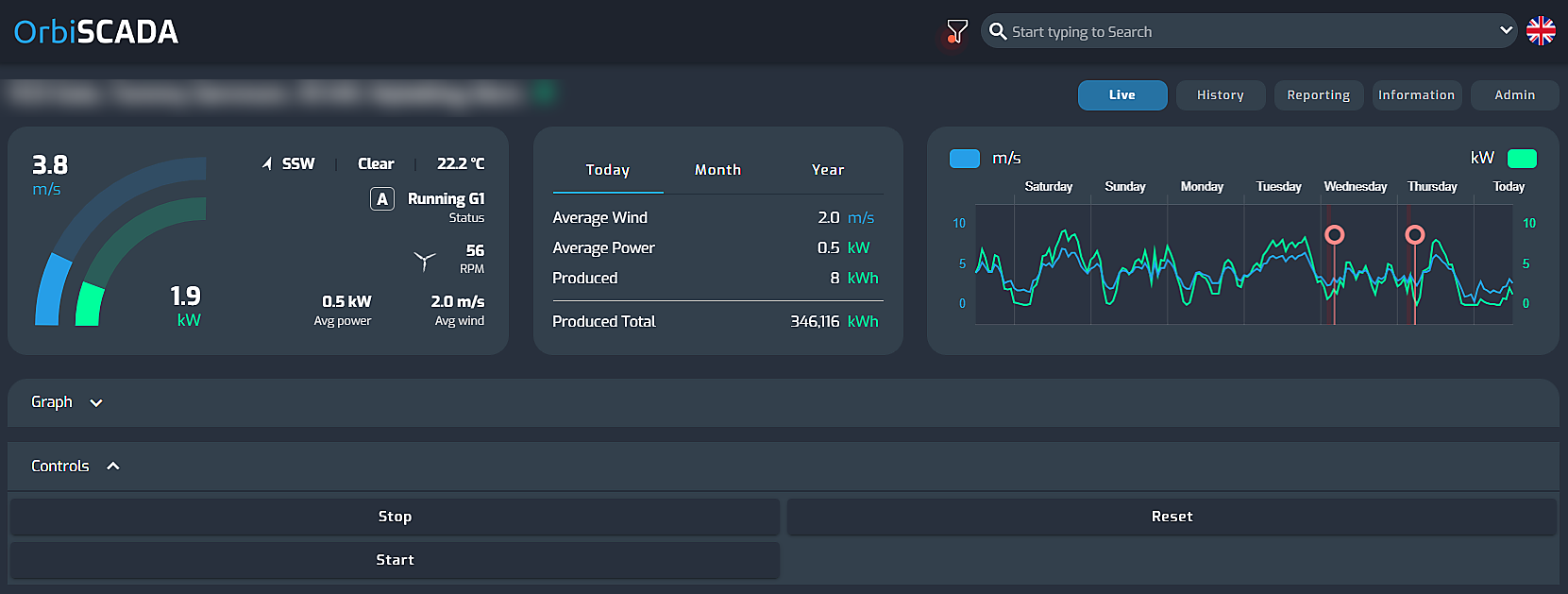
If the Live tab is not shown, your user does not have access to the Live tab for the selected controller.
If the Live tab is shown, but the Controls block is not available, your user may not have the required Control permission for that specific controller.
Available control commands
The available control commands depend on the controller type and the permissions assigned to your user. Examples of control commands may include:
- Stop
- Start
- Reset
- Motor start
- Mode toggle
- Yaw CW
- Yaw CCW
Not all commands are available for all controller types. Some controllers may only show basic commands, while others may show additional commands.
Send a control command
To send a control command:
- Open the selected controller
- Go to the Live tab
- Open the Controls block
- Click the command you want to send
When you click a command button, OrbiSCADA shows a confirmation window asking you to confirm the action.
Review the command carefully before confirming.
- Click Ok to send the command
- Click Cancel if you do not want to send the command
The command is only sent after you confirm it.
Command history in the activity log
Control commands are recorded in the controller history.
To view previous control commands:
- Open the controller
- Select the History tab
- Go to the Activity log section
- In the Event type dropdown, select Command
The Activity log shows control commands performed for the selected controller. This includes commands made by the current logged-in user and by other users who had permission to perform control commands at the time.
Use the timestamp for further analysis
In the activity log, select Commands from the dropdown menu for a complete log of controller commands. The date timestamp per command can be used to investigate what happened around the time a command was sent.
Clicking a timestamp takes you to that specific date in the History chart. This makes it easier to compare the command with controller data, production values, wind conditions or other activity around the same time.
Was this article helpful?
That’s Great!
Thank you for your feedback
Sorry! We couldn't be helpful
Thank you for your feedback
Feedback sent
We appreciate your effort and will try to fix the article