The Warning feature in OrbiSCADA allows users to add an important note to a selected controller.
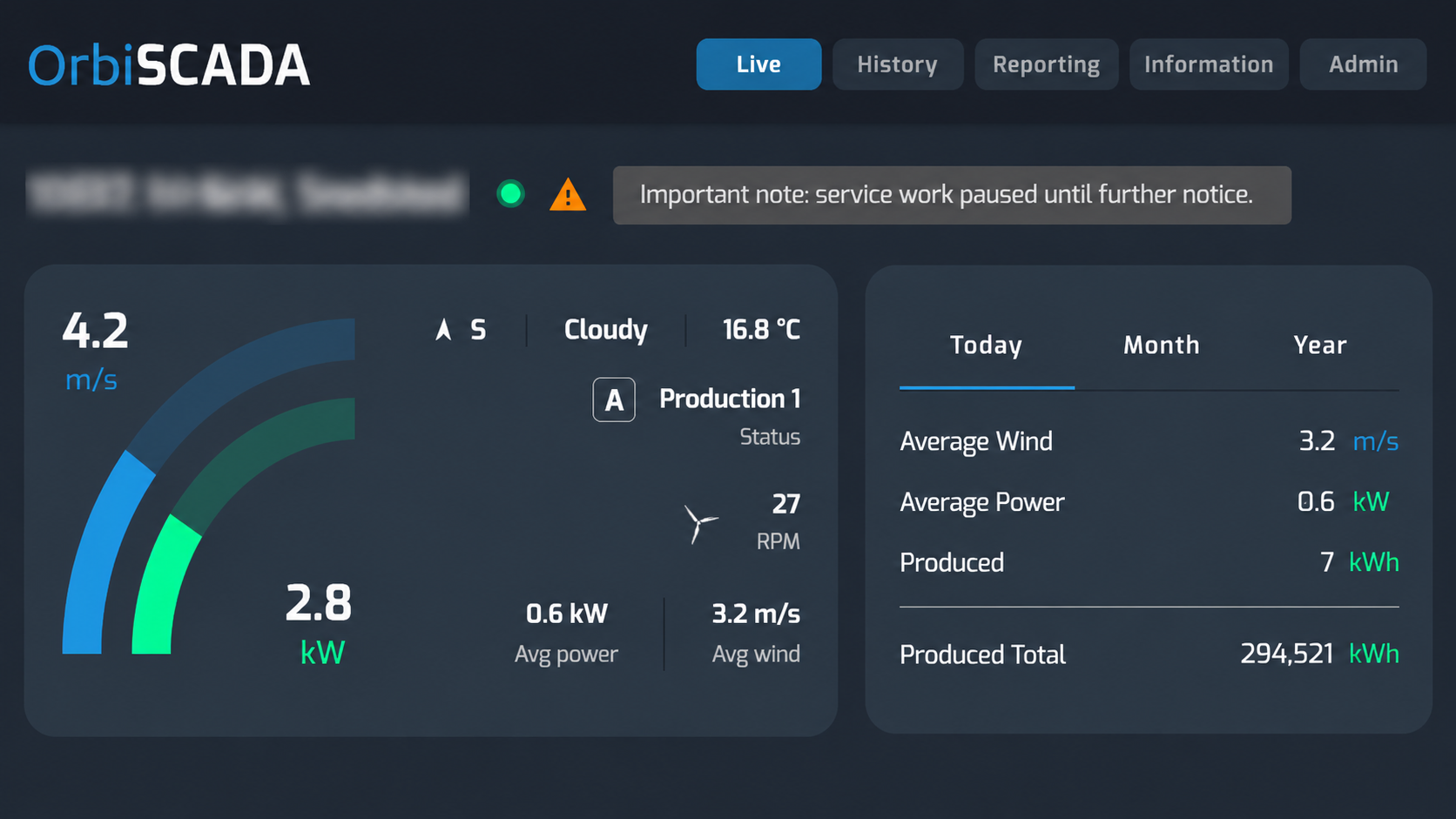
Warnings are managed from the Admin tab using the Warning card. The warning is shown next to the controller name and in the List view.
The feature is intended for service providers and professional users who need to make other relevant users aware of an important condition, service note or special instruction for a controller.
Note: The Admin tab and the Warning feature are only available if your user account has the required permissions for the selected controller.
Where to find the warning card
- Log in to OrbiSCADA
- Open the controller you want to add or edit a warning for
- Select the Admin tab
- Find the Warning card
If the Admin tab is not shown, your user does not have access to the Admin tab for the selected controller.
If the Admin tab is shown, but the Warning card is not available, your user may not have the required Warning permission for that specific controller.
Add a warning
- Add a Warning
- Open the Warning card
- Select the Has warning checkbox
- Enter the warning text in the description field
- Click Submit
When the warning is saved, a warning triangle appears next to the controller name. When a user hovers the mouse over the warning triangle, the warning text is displayed.
Edit or remove a warning
Users with access to the Warning feature for the selected controller can edit the warning text. To edit a warning:
- Open the controller
- Go to the Admin tab
- Find the Warning card
- Update the description text
- Click Submit
To remove a warning, clear the Has warning checkbox and submit the change.
Who can see the warning?
The warning is connected to the selected controller. Other users who have access to the same controller and have the required Admin and Warning permissions can see the warning text.
Warning display in the controller view
When a warning is active, a warning triangle is shown next to the controller name. Hovering over the warning triangle displays the warning text. This makes it possible to show a short important note without opening the Admin tab.
Warning display in list view
Warnings are also be shown in the List view. If the controller has an active warning, the warning text appear in the Status column. This helps users identify important controller notes directly from the overview list.
When to use warnings
Use warnings for short, important notes that other relevant users should see before working with the controller. Examples:
- Special site conditions apply
- A known issue is being monitored
- A technician should check something before making changes
- The controller should not be adjusted until further notice
Was this article helpful?
That’s Great!
Thank you for your feedback
Sorry! We couldn't be helpful
Thank you for your feedback
Feedback sent
We appreciate your effort and will try to fix the article