The Map view gives a geographical overview of the controllers you have access to. Each controller is shown as a colored dot on the map.
Status colors
The dot colors follow the same status logic as the List view filters:
- Green: The controller is online.
- Yellow: The controller has timed out.
- Red: The controller is in an error state.
Example of controller status colors shown on the map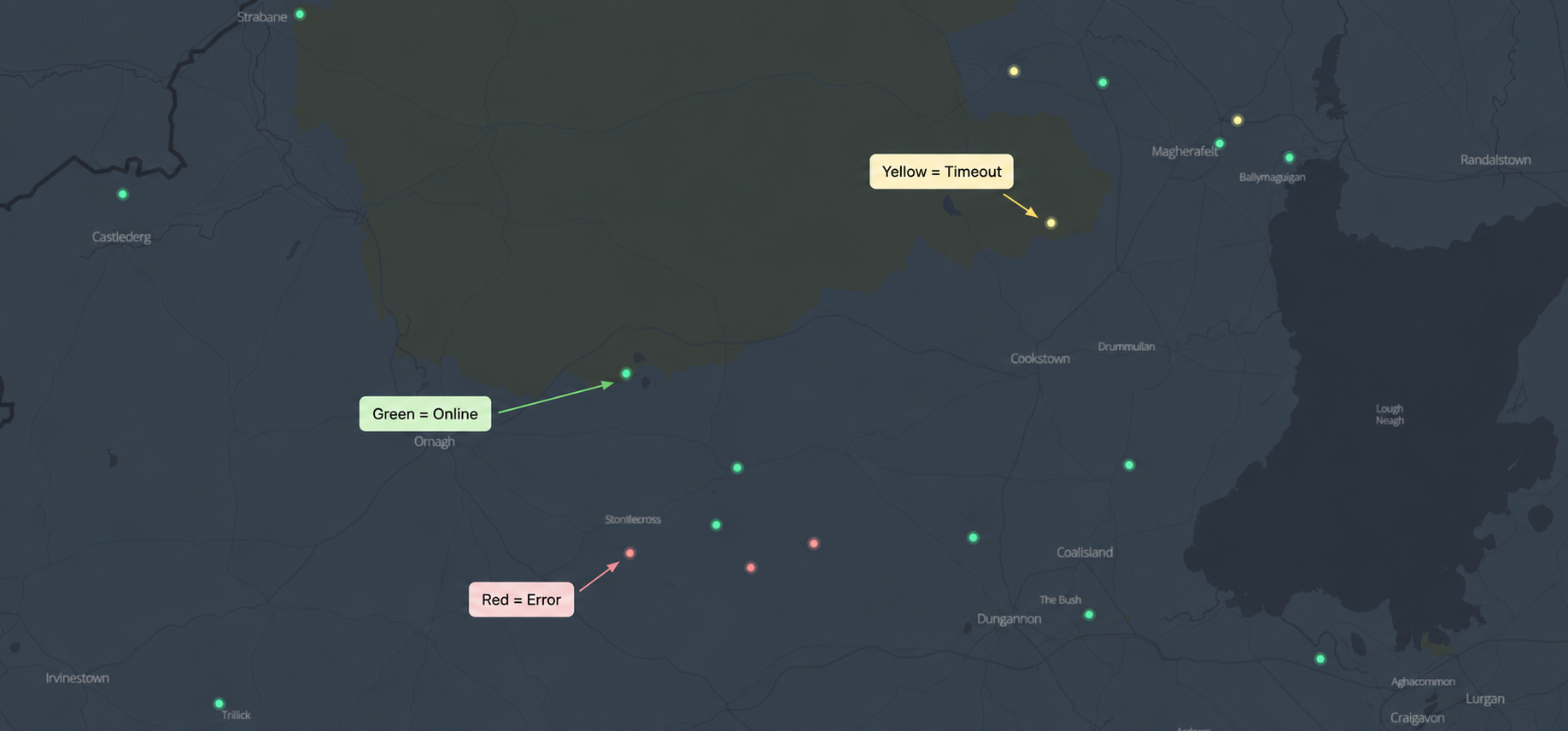
When more than one state applies, the timeout condition takes priority over the error color. This means a controller that is both in an error state and timed out is shown as a yellow dot.
Filter the map by status
You can filter the map using the status filters: Online, Timeout, and Errors. These filters make it easier to focus on controllers with a specific status.
View a controller's details
- Hover over a dot to see the controller's OrbiSCADA name.
- Click a dot to open the controller's overview panel on the right side of the screen. This is the same overview shown on the dashboard, and a production metrics card.
Was this article helpful?
That’s Great!
Thank you for your feedback
Sorry! We couldn't be helpful
Thank you for your feedback
Feedback sent
We appreciate your effort and will try to fix the article