Cinterion BGS2T RS232
This page helps you identify the Cinterion BGS2T RS232 modem and check the modem label, LED status, antenna connection, and SIM card.
2G availability warning: The BGS2T only supports 2G (GSM/GPRS). If your mobile operator has shut down 2G in your area, the modem cannot connect regardless of SIM, antenna, or LED status. Check with your SIM provider that 2G is still active on the network and on your subscription before troubleshooting hardware.
Identify the modem
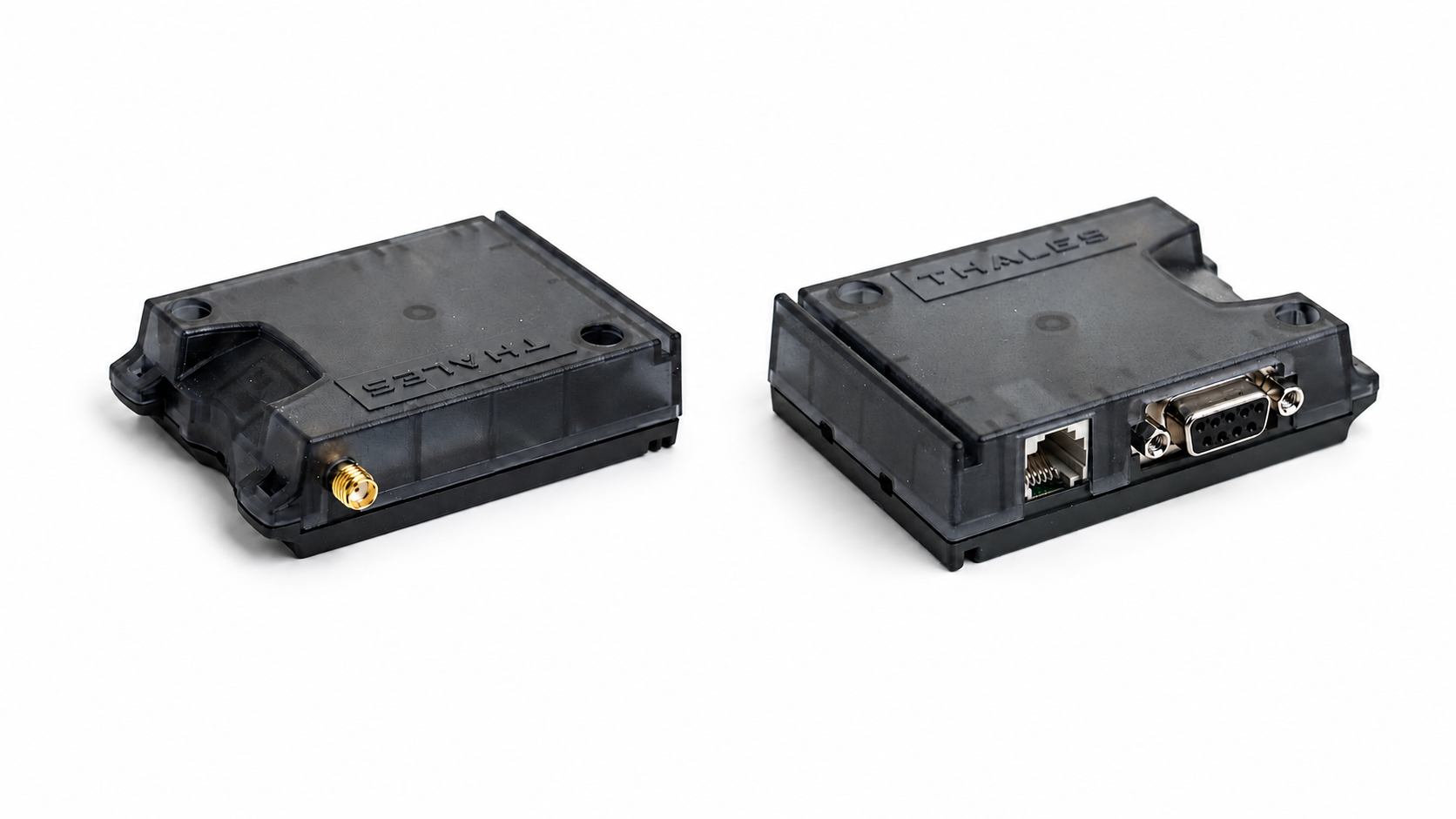
Check the label on the modem.
| Specification | Value |
| Modem type | Cinterion BGS2T RS232 |
| Housing color | Black |
| Network | 2G GSM/GPRS (Quad-band 850 / 900 / 1800 / 1900 MHz) |
| Interface to TMC-3 | RS232 / DB9 (female) |
| Power | 8–30 V DC via 6-pole Western jack |
| Antenna connector | SMA female |
| SIM | Mini-SIM (2FF), 1.8 V or 3 V |
LEDs
The modem has two LEDs:
- The green LED shows whether the modem is powered and ready to operate.
- The orange LED shows the modem's current network and communication status.
On some black units the orange LED can look red through the casing. Use the blink pattern, not only the colour.
Green LED
| LED status | Meaning |
| On | Modem is powered and ready. |
| Off | Modem is not powered, powered down, or still starting up. |
Orange LED
The orange LED shows the modem’s network and communication status. On some units the orange LED may look red through the casing, so use the blink pattern to identify the status.
| LED mode | Operating status of BGS2T |
| Permanently off | Modem is powered down |
| 600 ms on / 600 ms off | Limited network service: no SIM, no PIN, network search in progress, or login in progress. |
| 75 ms on / 3 s off | IDLE — registered, no data session. |
| 75 ms on / 75 ms off / 75 ms on / 3 s off | GPRS context active — ready for data. |
| 500 ms on / 25 ms off | Packet data transfer active. The modem is currently sending or receiving data. |
| Permanently on | Call/data session active, or parameters are being exchanged while setting up or tearing down a session. |
Antenna
The BGS2T uses an external antenna connected to the modem's SMA female connector. The antenna cable must therefore have an SMA male end. Use a quad-band GSM antenna covering 850 / 900 / 1800 / 1900 MHz.
| Antenna requirement | Value |
| Connector on modem | SMA female |
| Connector on antenna cable | SMA male |
| Supported frequency bands | 850 / 900 / 1800 / 1900 MHz. |
SIM card
The BGS2T uses a Mini-SIM (2FF) card to access the mobile network. The modem supports both 1.8 V and 3 V SIM cards. The SIM card is inserted directly into the SIM slot on the modem — the BGS2T does not use a removable SIM tray. The slot uses a push-push locking mechanism: push the SIM in to lock it, push it in again to release it.
Modern SIMs from carriers are often supplied as nano-SIM or micro-SIM in a punch-out frame. Make sure the SIM is in the Mini-SIM (2FF) size before inserting it. The SIM must be active and have its PIN disabled. Test the SIM in a mobile phone before installing it in the modem.
Inserting the SIM card
- Check the SIM orientation symbol on the underside of the modem. The cut corner and contact side of the SIM card must match the symbol shown on the modem casing.
- Insert the SIM card carefully into the SIM slot.
- Push the SIM card all the way in until it clicks or locks into place. It may be necessary to use a fingernail or a small flat tool to push the SIM card fully into the slot. Do not use excessive force. When correctly inserted, the SIM card stays locked inside the modem and does not slide back out.
Removing the SIM card
To remove the SIM card, gently push the SIM card further into the modem and then release it. The internal locking mechanism will release the SIM card, so it can be pulled out by hand. Do not pull the SIM card out by force while it is locked since this may damage the SIM slot.
Important: restart after changing SIM card
If the SIM card is inserted, removed, or replaced while the modem is operating, the modem must be restarted so it can detect the SIM card correctly and log on to the mobile network. To restart: disconnect the power cable from the modem for at least 10 seconds, then reconnect it.
SIM card settings (APN and HNI)
After inserting a new SIM card, the TMC-3 must be configured with the SIM's APN and HNI so the modem can register on the mobile network and reach OrbiSCADA. The procedure depends on the TMC-3 firmware version.
Was this article helpful?
That’s Great!
Thank you for your feedback
Sorry! We couldn't be helpful
Thank you for your feedback
Feedback sent
We appreciate your effort and will try to fix the article