The History chart in OrbiSCADA shows controller data for a selected day. The chart is the first section shown when you open the History tab. It can be used to review values such as wind speed, power and other available controller measurements over time.
Where to find the History chart
- Log in to OrbiSCADA
- Open the controller you want to review
- Select the History tab
- The chart is shown in the first section of the page
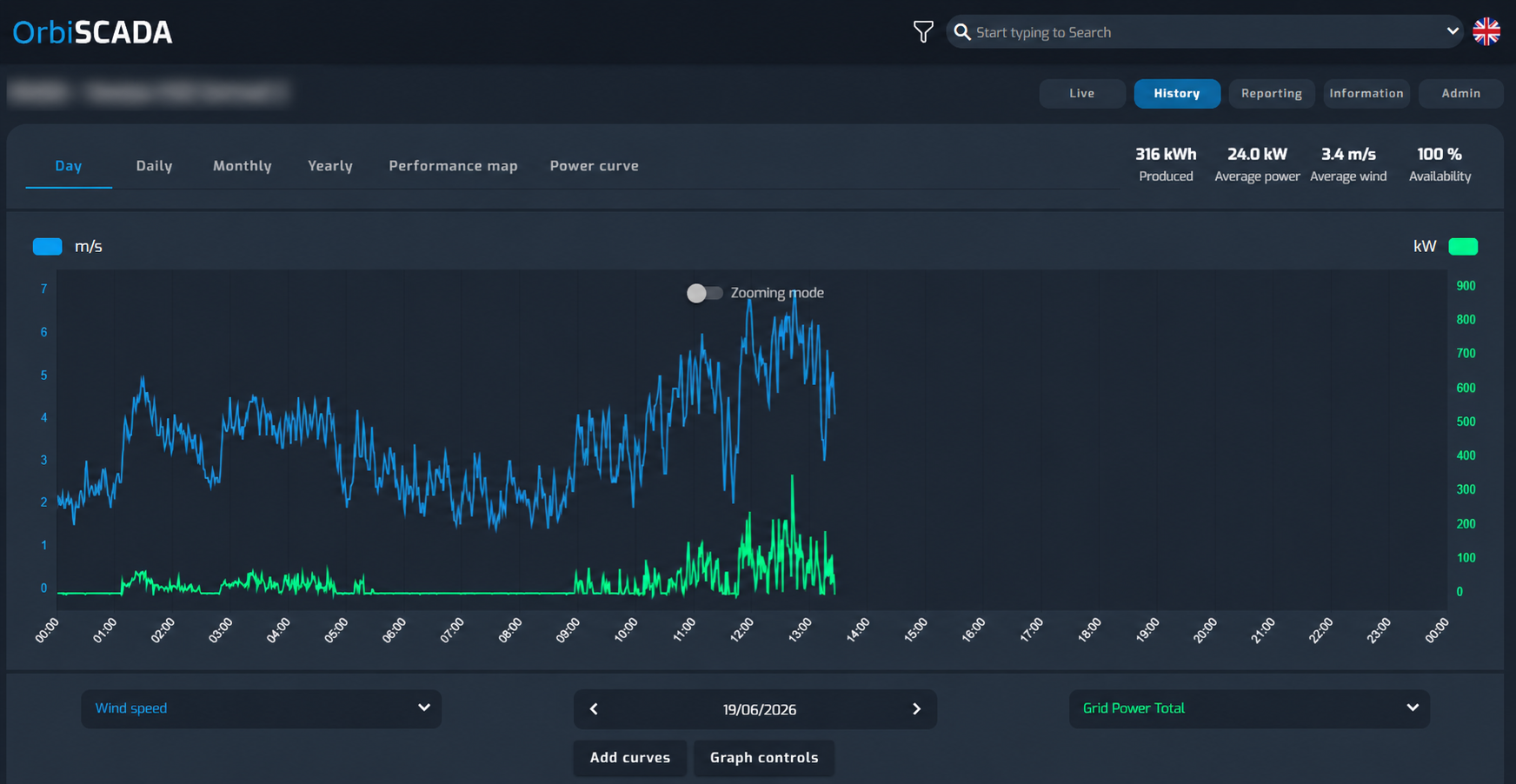
Default chart view
By default, the chart opens on the current date. The default chart lines are usually:
- Wind speed
- Grid Power Total
The available chart values can vary depending on the controller type and controller configuration.
Select another date
Use the date selector below the chart to change the day shown in the chart. You can:
- Click the left arrow to go to the previous day
- Click the right arrow to go to the next day
- Click the date field to open a calendar and select another date
The chart updates when another date is selected.
View values in the chart
Hover over log entries in the chart lines to see the value at a specific point in time. This makes it easier to check what the controller was measuring at a specific moment. History logs are normally shown with one minute apart. If the log entries are not consistent, or if there are gaps in the chart, this may be caused by connection issues, missing data or periods where the controller did not report normally.
Zoom in on the chart
You can zoom in on a specific time period in the chart. To zoom:
- Place the mouse cursor at the start of the period you want to inspect
- Click and drag across the chart area
- Release the mouse button
The chart zooms in to the selected time range. You can repeat this process until the desired level of detail is shown. To return to the full day view, click Clear zoom.
Change chart values
The chart lines can be changed using the dropdown menus below the chart. Select another value from a dropdown to change what the chart line displays. Available options can vary depending on the controller type. Examples may include:
- Rotor RPM
- Generator RPM
- Wind speed
- Wind relative direction
- Wind absolute direction
- Nacelle direction
- Pitch angle
- Grid Power Total
- Power set point
- Nominal Power
Add more chart lines
Click Add curves to add more chart line options. This allows you to compare additional controller values in the same chart.
When extra curves are added, additional dropdown menus become available. Use these dropdowns to select which values should be shown.
Graph controls
Click Graph controls to customize how the chart is displayed such as:
- Left axis minimum value
- Left axis maximum value
- Right axis minimum value
- Right axis maximum value
- Whether zero lines are shown
This can be useful when values are difficult to compare because the scale is too wide or too narrow.
Was this article helpful?
That’s Great!
Thank you for your feedback
Sorry! We couldn't be helpful
Thank you for your feedback
Feedback sent
We appreciate your effort and will try to fix the article