How to install a SIM card in a TMC-3 controller
Use this procedure when you need to install a new SIM in a TMC-3 controller. It applies whether the
SIM is supplied by Orbital or by a third party.
Before you start
- Collect APN information and HNI number from the SIM card provider (usually available on their website).
- Confirm the SIM is active and does not require a PIN — verify by inserting it into a phone first.
- Confirm the modem is supplied by Orbital. Third-party modems are not supported. See Orbital modems if you need to identify the modem on site.
- Have a PC, an Ethernet cable, a USB-to-Ethernet adapter if needed, and the TMC-3 Configurator program ready.
- You want to change SIM card provider to get better site coverage
Procedure
- Collect APN information and HNI number from the SIM card provider (can usually be found online)
- Make sure the data SIM card is active and requires no password (insert in a mobile phone to verify)
- Make sure you have a PC, Ethernet cable, adapter, and the TMC-3 configurator program
Initial on-site steps
- Collect the controller SN number and firmware details
- Set GSM modem strings to default
- Verify the modem is supplied by Orbital
Procedure to change SIM card:
- Insert SIM card in the modem
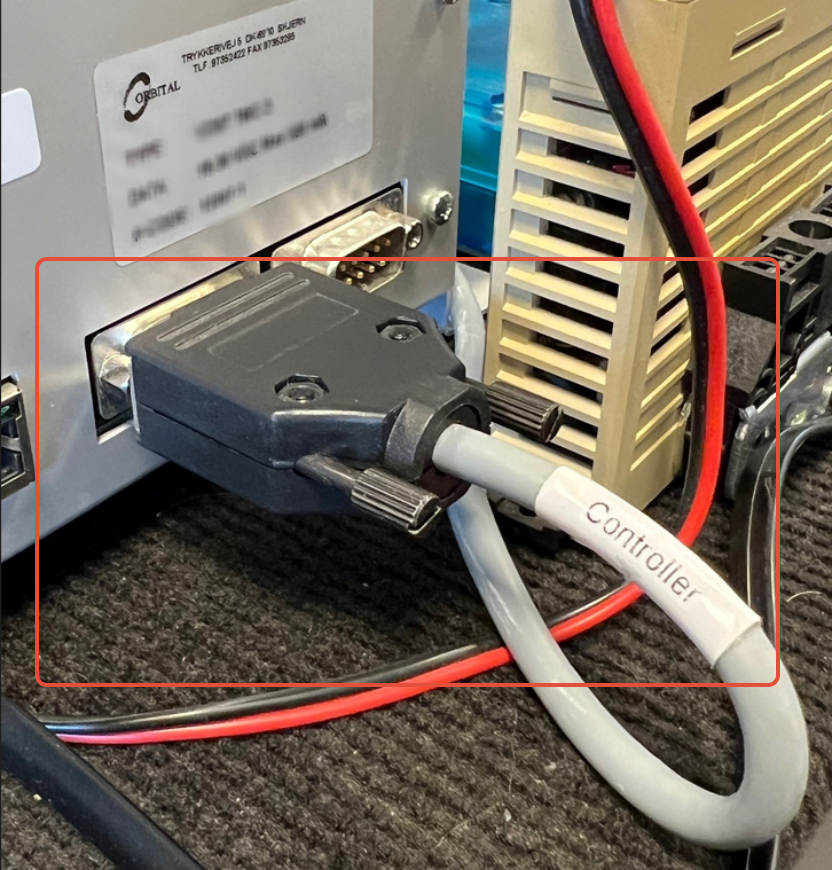
- Make sure the connector cable is plugged in correctly. The cable end marked "controller" must be connected to the controller. See the picture example below
- Verify the antenna location (outside cabinet/tower)
- Go to the TMC-3 menu, monitoring, and find a view similar to the screenshot below
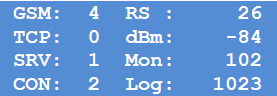
- Check the values according to the guidelines below
- The logging value should increase by 1 every minute
- Check the modem status indicators
- Wait 10 minutes
- Verify that the controller is pending/online in OrbiSCADA
- If yes, then the SIM card change is complete
If the controller doesn't show up as pending/online in OrbiSCADA
- Browse the TMC-3 menu to check if Setup/String is available?

- If yes, proceed with the following steps
- Make sure you have access level 2
- Enter APN information in <00>

- Enter HNI number in <01>

- The format you need to enter depends on if the modem is 2G or 4G.
- 1,2, XXXXX for 2G modems (blue or black color), see example below

- 1,2,"XXXXX" for 4G modems (orange color), see example below

- 1,2, XXXXX for 2G modems (blue or black color), see example below
- The format you need to enter depends on if the modem is 2G or 4G.
- Use the main switch to repower the controller
- Wait 10 minutes
- Verify that the controller is pending/online in OrbiSCADA
- If yes, then the SIM card change is complete
If Setup/Strings is not available in the TMC-3 menu, proceed with the following steps
- Connect a PC to the controller by using an Ethernet cable (and maybe also an USB-Ethernet adapter)
- Go ahead and use the TMC-3 configurator
- Enter APN and HNI information according to the SIM card provider
- Use the main switch to repower the controller
- Wait 10 minutes
- Verify that the controller is pending/online in OrbiSCADA
- If yes, then the SIM card change is complete
Was this article helpful?
That’s Great!
Thank you for your feedback
Sorry! We couldn't be helpful
Thank you for your feedback
Feedback sent
We appreciate your effort and will try to fix the article